
Best AI Viral Video Generators in 2026: Tools Compared
Compare seven AI video tools for recreating trends, generating original shorts, and clipping long videos. Watch a real Bicep Heart photo-to-video example.
The easiest way to choose an AI viral video generator is to look at what you already have. A portrait and a trend reference call for a template tool. A visual idea or script calls for a generator. An interview or a folder of clips calls for an editor that can turn the footage into something worth watching on its own.
AI Viral Video publishes this guide. The Bicep Heart example shows a real render supplied for this article. The other comparisons draw on each vendor’s public feature and pricing pages, checked November 12, 2026. The seven tools were assessed by starting material, type of output, editing control, and billing model.
The seven tools side by side
| Tool | Best use | Billing | Main trade-off |
|---|---|---|---|
| AI Viral Video | Recreate a supported trend with your photo | Pay-as-you-go credits | Creative direction depends on the reference |
| MakeViral.ai | Browse and try a variety of trends | Credits vary by template | Customization depends on the template |
| Revid AI | Create and publish short-form content regularly | Hobby listed at $39/month | Allowances and publishing features depend on plan |
| CapCut | Cut clips and refine captions, timing, and audio | Free and paid features | Some features vary by platform and region |
| Runway | Generate original shots from text or images | 125 one-time free credits. Standard is $15 monthly or $12/month billed annually | Iterations use credits |
| InVideo AI | Turn a script into an explainer or promo | Starter listed at $10 per seat/month on the advertised annual offer | Model access varies by plan |
| OpusClip | Find and reframe highlights from long videos | Starter is $15 billed monthly | Depends on the source footage |
Check the linked pricing pages for current offers, billing periods, and credit allowances before buying.
Real example: recreating the Bicep Heart trend
The original Bicep Heart clip sets the scene and movement. For the recreation, a full-body portrait of a man in a black T-shirt was used to replace the foreground performer. Play the two videos to see how the portrait carries into the moving shot.
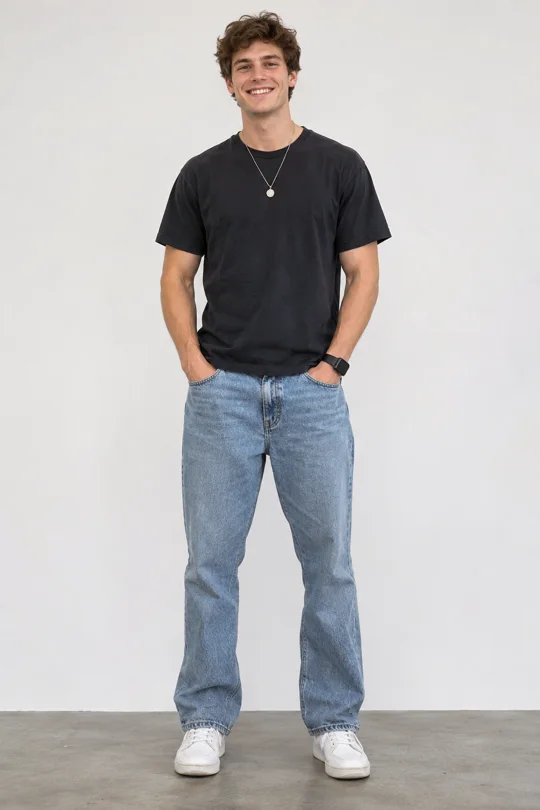
In the opening arm flex, the generated performer takes on the portrait’s curly hair, black T-shirt, and necklace. The second performer, holiday setting, and on-screen “Bicep heart?” text remain recognizable. Compare the arm movement and framing as the foreground performer moves toward the camera. This example shows how a reference can carry the setup and action into a personalized clip.
Which tool fits your workflow?
AI Viral Video for recreating a specific trend
Start here if you already know the effect or choreography you want. Pick a supported reference and upload the photos requested by that template. A recognizable starting point is useful when timing or body movement is part of the joke. For clips where a subject crosses the frame or moves close to the camera, preview the full result to check how consistently their appearance carries through. Explore video templates
MakeViral.ai for browsing trend templates
MakeViral.ai makes discovery part of the workflow. You can browse categories such as pets, couples, and dance, then check the number of photos and credits each effect requires. It suits creators who want several ideas before choosing one. Compare the previews closely because each template sets its own scene and movement. Browse MakeViral.ai templates
Revid AI for a recurring short-form schedule
Revid can turn ideas, scripts, and links into editable short videos with captions and voiceovers. Publishing and automation features matter most when you plan to make a series. Check the credits your preferred visual mode uses and whether the plan includes the publishing channels you need. See Revid AI plans
CapCut for editing and finishing
CapCut is the practical choice when you already have a usable take and want to tighten the opening, fix caption breaks, or sync an edit to a beat. It gives you direct control of the timeline, plus templates and AI-assisted tools. Verify feature and export availability on the device you plan to use. See CapCut’s editor and features
Runway for original AI-generated shots
Runway fits projects that need a specific visual, setting, or camera move. Use a prompt or an image to guide a shot, then assemble usable takes in an editor. For budgeting, estimate how many attempts each shot may need and check the credit cost of the model you intend to use. See Runway plans and credits
InVideo AI for script-led explainers and promos
InVideo AI is useful when narration and the sequence of ideas drive the edit. A marketer can start with a product script, use stock or generated visuals, and refine the timeline. Review brand names, product details, and the match between narration and footage before publishing. See InVideo AI plans
OpusClip for turning long footage into shorts
Start with a podcast, interview, webinar, or another long recording. OpusClip can identify highlights, reframe footage, and add captions. Watch the suggested cut as a standalone video. A strong quote may need a few seconds of setup to make sense to someone who missed the original conversation. See OpusClip plans and clipping features
Frequently asked questions
Can an AI video generator make a video go viral?
Audience response determines reach. Use generation to test ideas faster, then compare whether viewers stay through the opening, watch to the end, or share the clip.
Can I make a viral-style video from one photo?
Yes. Pick a template that takes one image and match the framing to the action. A full-body photo is useful for gestures or dance moves. Two-person templates may request a second portrait.
Which tool should I start with for TikTok, Reels, or Shorts?
For a recognizable photo-based trend, try a matching template. For a podcast highlight, start with OpusClip. When the footage already works, use CapCut to refine the opening and captions. Preview the export on your phone so you can see how the app’s controls will sit over any on-screen text.