
How to Recreate Viral TikTok Videos with AI Using Your Own Photos
Recreate a viral TikTok with AI or put yourself in the trend. Pick a template, replace a performer with your photo, and download your clip.
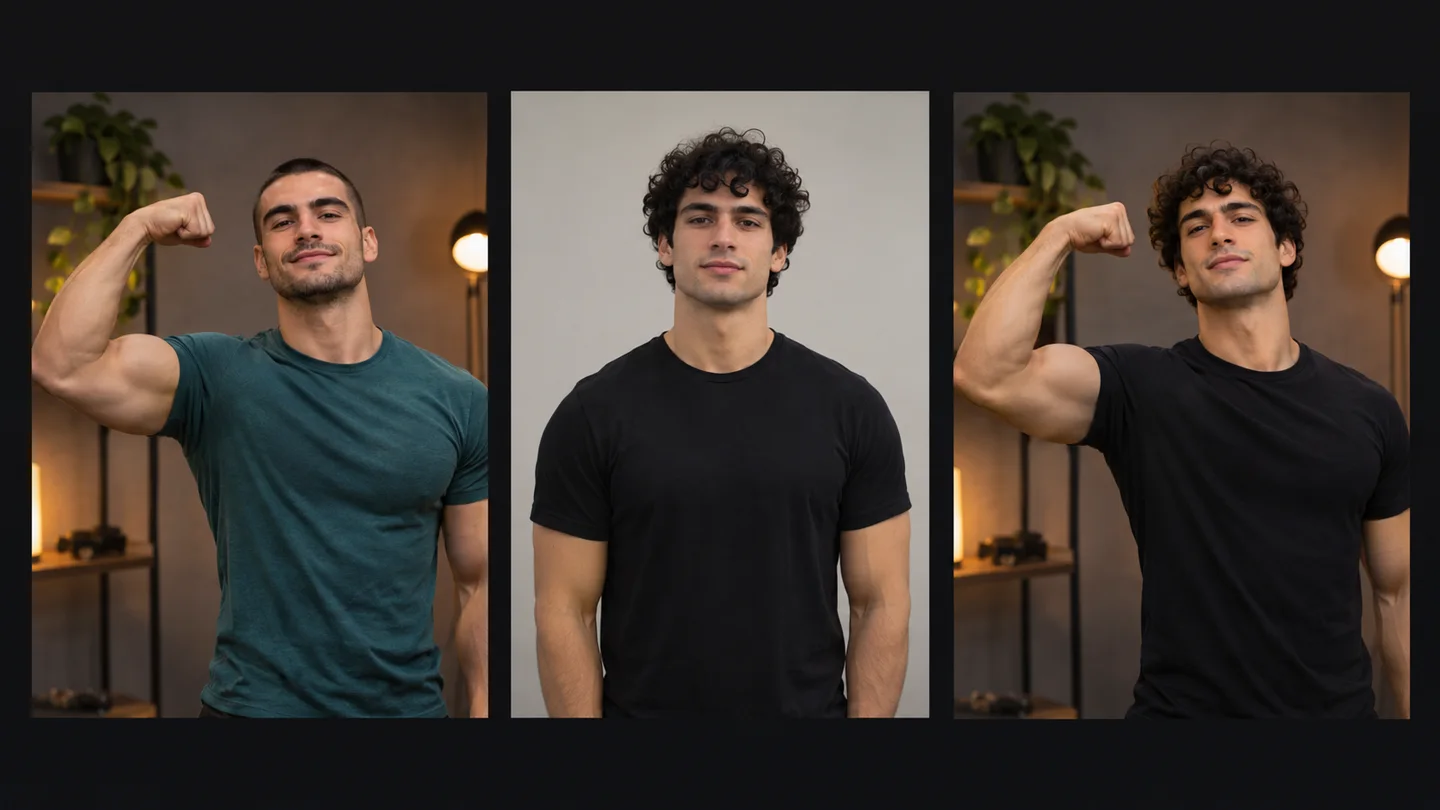
To recreate a viral TikTok with your own photo, choose a trend template, pick the person you want to replace, and upload a clear picture of yourself for that role. The reference video supplies the movement and timing. Your photo tells the AI who should perform it.
See the swap in a real Bicep Heart recreation
In the original Bicep Heart clip, two people perform a flex-and-heart gesture. For this recreation, a full-body portrait of a man in a black T-shirt was used to replace the foreground performer. Play the source and result and watch the opening flex.
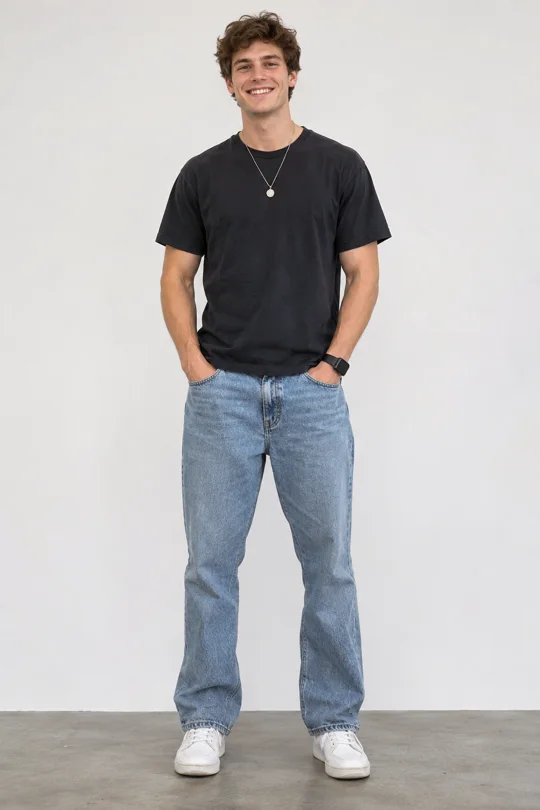
The new foreground performer has the curly hair, black shirt, and necklace from the portrait. The second performer, holiday setting, and on-screen text are still recognizable. The easiest way to judge the swap is to compare the flex and the moment the foreground performer moves toward the camera. Those beats make the trend recognizable, while the portrait makes the clip personal.
1. Pick a trend with a role you want to play
Browse the supported references in AI Viral Video and watch the full clip before choosing. Find the moment you want to recreate and identify which performer leads it. In a two-person clip, pause on the key gesture and check which role starts it. If you pick the other role, the result can make it look like you are reacting to the trend instead of leading it.
For a first try, pick a clip where the person you want to replace is clearly visible. Quick cuts, face coverings, and performers crossing in front of one another give you more moments to inspect in the result.
2. Upload a photo for the performer you want to replace
Use a clear JPG, PNG, or WebP photo where your face is easy to see. Match the crop to the action. A head-and-shoulders portrait can work for a tight reaction shot. For a flex, dance, or full-body movement, choose a wider image with the shoulders, arms, and body visible. The Bicep Heart example used a full-body portrait.
A single-role template takes one photo for the lead. On a two-role template, place your photo in the slot for the performer you want to replace. You can leave the other slot empty to keep that role from the reference, or add a second authorized photo to replace both performers. Check the role labels before generating, especially if the performers move across the frame.
3. Generate your video and check the key movement
Start generation and play the result from the first frame. Pause on the signature move, then watch the transition into and out of it. Check that the right role changed, your face stays recognizable, and the arms or hands look natural through the gesture.
If the wrong person changed, move your photo to the intended role. If your appearance shifts during a turn, retry with a sharper photo or choose a reference where the subject spends more time facing the camera. Once the clip looks right, download the MP4. Preview it on your phone so you can see how the framing and captions hold up at posting size.
How to Put Yourself into a Viral TikTok Video
Start with a one-person template if you want to be the only performer replaced. The Talk to Me Doja AI template is a worked example. It uses one photo for the person who cups their cheeks and sways while the anime stickers appear.
- Choose the template. Preview Talk to Me Doja and find the moment you want to recreate. Here, it's the cheek-cupping sway after the opening close-up.
- Choose an authorized photo. Use a sharp, well-lit photo of yourself or of an adult who has explicitly agreed to this use. A solo waist-up or full-body photo gives the template a clear view of your face and outfit. This template accepts JPG, PNG, and WebP up to 10 MB.
- Replace the performer. Upload the photo to the template's single performer slot. For a template with multiple roles, use the role preview to identify which performer gets your photo.
- Generate and review. Start generation. When the clip is ready, check that your face is recognizable in the opening and that your hands look natural when they reach your cheeks.
- Download the MP4. Save the clip and watch it on your phone. This template exports a silent vertical video, so add a sound you’re allowed to use in TikTok if you want audio.
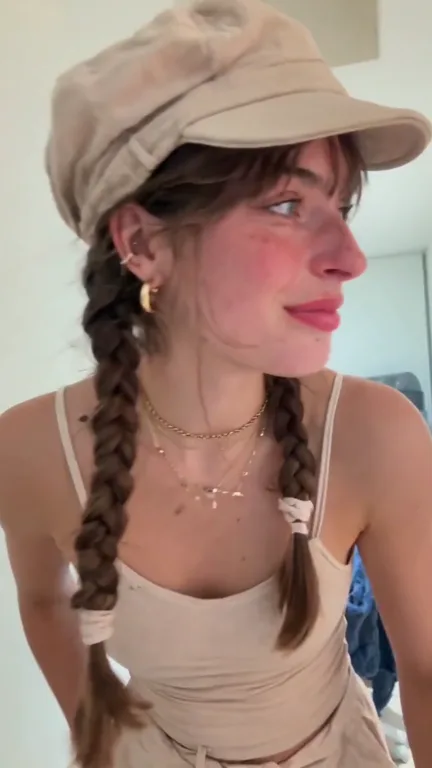
A frame from the template's gallery demo. Watch the full clip on the Talk to Me Doja AI template page.
Before you post
Use photos you have permission to animate and references you have permission to use. TikTok requires disclosure for realistic AI-generated content and restricts some uses of people’s likenesses. Check the AI-generated content setting before posting a realistic recreation. TikTok’s AI-generated content guidance
If the post promotes a product or business, TikTok requires commercial disclosure and recommends its Commercial Music Library for music. Commercial disclosure · Commercial music guidance
Can you recreate a two-person TikTok with one photo?
Yes. On a supported two-role template, upload your photo to the role you want to play and leave the other slot empty. To put yourself and a friend in the same trend, add one authorized photo per role.